At United School, e-learning is an essential part of our academic system. Our advanced digital learning platform allows teachers to blend modern technology with traditional teaching methods, creating a more dynamic and effective learning experience. We know that shifting to online education can be challenging at first, which is why we consistently guide and train our students to help them make the most of our interactive virtual classes.
Platform for Online Classes: Veda App
Let’s talk about which platform we’ll use for the online classes.
What is Veda App?
Veda is a cloud-based school management and digital learning platform developed by Ingrails, a software company in Nepal. It helps schools digitize and simplify daily operations by connecting teachers, students, and parents. The app includes features such as online classes, attendance tracking, communication tools, grading, and other management functions to make school processes more efficient.
How to use the Veda App?
Teachers can access the Veda App either through the website on a desktop or by downloading the mobile app from the Play Store.
To get started, you can also watch the tutorial provided below for step-by-step guidance.
Mobile Tutorial
Desktop Tutorial
Internet speed for using Google Meet
Audio Calls
Audio-only calls need about 100 Kbps.
Group Video Calls (HD)
A minimum of 250 Kbps outbound and up to 4.0 Mbps inbound is
recommended.
1080 Video
Up to 3.6 Mbps outbound and inbound.
Recommended minimum for general use
Around 25 Mbps download and upload for a reliable experience
with video and other tasks.
Recommended for HD video
Needs 50 Mbps or higher, particularly in a household with
multiple users or devices.{" "}
United School Application (Veda) Code of Conduct for Teachers
Do’s
Don’ts
Change your password as soon as you log in with your default password.
Do not change your username without permission.
Be on time; it is better to join the Meet 5 minutes beforehand.
Do not evade your classmates and teachers’ privacy.
Be on time, dress properly, and keep the background neutral.
Do not misuse photos and videos of others.
Keep your video always on.
Do not take screenshots without letting the people in the picture know about it.
Keep your full online class recording and provide the record if asked.
Do not share your username and password with your colleague.
Use this link to provide and check assignments: YouTube Tutorial.
Do not eat onscreen; drinking is allowed only as in a real classroom.
Recheck your assignment and materials before sending; include due dates properly.
Do not use unfamiliar applications without permission.
Check if your device autocorrect or file conversion has changed any words.
Do not use “slang” language.
Do not use foul, disrespectful language or images in communication.
Do not use virtual backgrounds without permission.
Yes. A Gmail account is required to create and host a Google Meet class. Students can join if the host approves their entry.
Open Google Meet and join or start a meeting. Before joining, select “Apply visual effects” on your video preview and choose a background image, or upload your own. If you are already inside the meeting, open the three-dot menu, choose “Apply visual effects,” and select your background. Download the image linked here and use this as a background for your class. Click to Download
During the meeting, click "Present now" at the bottom of the screen. Choose whether to present your entire screen, a window, or a tab, then click "Share." To stop presenting, select "End presenting for all."
When students request to join, an approval request will appear, and you can click "Admit." You may also share the meeting link with them. In Host controls, you can turn Quick Access on or off to decide whether students join automatically or wait for your approval.
Yes, but this depends on your settings. Open Host controls and turn screen sharing, microphone, and camera permissions on or off for participants.
To prevent students from sharing their screen, open the Host Controls in Google Meet, and then you will see “share their screen”; you will turn OFF the option "share their screen". Only the host/teacher will be able to share afterward.
Open "Host Controls" → “Anyone with the meeting link can ask to join” turn on this option, then.
Only people you have admitted to the meeting can join.
Students from outside (unknown emails) must request to join.
You may allow students to rejoin up to 3 times if they get disconnected due to network issues.
Rejoin the same Google Meet link
Students will still remain in the meeting unless the meeting ends on the Veda App.
Once reconnected, continue the class normally.
Veda
Log in to your Veda app and go to Account Configuration. Set up your online class by selecting Google Meet, then enter the Meet URL and class title. Submit your class. Next, go to Online class>Start class, and then you will see the online class. Select the program, batch, class, section, and subject, then add the class. Finally, select your account and start the class.
Yes, the academy has a strict format for a class title during online classes, so you can not keep it random. According to the class format protocol of the academy, first, your abbreviated name by the academy hyphen and your subject. For example, SB-Chemistry, i.e., Sharmila Bajracharya of the Chemistry subject.
To end an online class, go to E-learning > Online Class > Start Class. On the left, you will see Active Online Classes. Select your class and click the End button. It is a must; otherwise, you will have a problem joining your other classes afterwards.
If you forget your login ID, please contact us at 9801870606 for technical assistance.
First, ensure the class has been added or not. If not, go to Online Class → Account Configuration and add the Google Meet link. Then go to Start Class, select the program, batch, class, section, and subject, and add the class. Finally, choose your account and start the class.


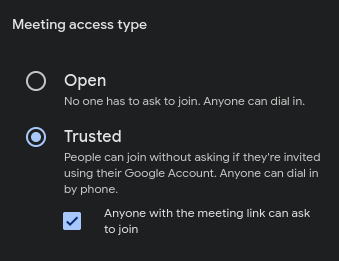 Open "Host Controls" → “Anyone with the meeting link can ask to join” turn on this option, then.